


Your phone might be secretly watching you. Spy apps can track your location, record your calls, read your messages, and access your photos without you knowing. These apps often disguise themselves as normal programs and run quietly in the background.
To detect spy apps on your phone, look for warning signs like unusual battery drain, unexpected data usage spikes, strange background noises during calls, and unfamiliar apps with excessive permissions. Your device also includes built-in privacy indicators that show when your camera or microphone is being accessed.
Last Updated: May 2026 | Will Montgomery has researched and tested mobile privacy tools extensively, helping readers identify and remove spy apps from both iPhone and Android devices.
Finding and removing these hidden programs requires knowing where to look and what steps to take. This guide walks through the specific warning signs that indicate spying software, how to check your phone’s settings for suspicious activity, and the most effective methods for removing unwanted surveillance apps from your device.
Recognizing Warning Signs of Spy Apps
Your phone will show specific signs when spy apps are running in the background. These warning signs include power problems, data usage changes, performance issues, and unfamiliar apps appearing on your device.
From experience: I haven’t personally caught a spy app on my phone, but I do make a habit of telling Siri to stop listening — a small step that reflects how much always-on microphone access can feel like an overreach. If you’re already thinking twice about your voice assistant, it’s worth taking that same skepticism to the rest of your app permissions.
Unusual Battery Drain and Overheating
Spy apps run constantly in the background to monitor and record activity. This continuous operation drains battery power much faster than normal use.
A phone that loses 20-30% battery within a few hours of light use may have spyware installed. The device might also feel warm or hot to the touch even when not actively being used.
Spyware consumes processing power to track locations, record calls, and capture screenshots. This extra workload generates heat and depletes battery life quickly. Users should compare current battery performance to how the phone performed when new.
Legitimate apps can also cause battery drain, but the difference is noticeable. If the phone’s battery life suddenly drops without installing new apps or changing usage habits, spy software could be the cause.
Unexpected Data Usage Spikes
Spy apps send collected information to remote servers. This data transfer uses cellular data or Wi-Fi connections.
Check monthly data usage in phone settings. A sudden increase of several hundred megabytes or more without explanation indicates possible spyware. The apps transmit screenshots, messages, call logs, photos, and location data regularly.
Most phones show data usage broken down by app. Unknown apps consuming large amounts of data deserve investigation. Spyware often disguises itself with generic names like “System Service” or “Device Health.”
Information being sent from your smartphone uses data whether you notice it or not. Users on limited data plans may see overage charges appear for the first time.
Strange Behavior or Performance Issues
Phones infected with spy apps exhibit unusual behaviors. The camera or microphone may activate without user input. GPS location services might turn on randomly.
The device may restart on its own or take longer than usual to shut down. Some advanced spyware prevents the phone from powering off completely. Apps might crash frequently or the phone becomes sluggish during basic tasks.
Users may hear clicking sounds, static, or echo during phone calls. While poor reception causes similar issues, distortion on multiple calls suggests possible interception.
Pop-ups appearing constantly signal adware or spyware infection. The home page or search engine may change without permission. These signs of compromised devices require immediate attention.
Unfamiliar Apps and System Changes
Check installed apps regularly for unfamiliar programs. Spy apps often use innocent-looking names like “Calendar,” “Calculator,” or “Weather” to avoid detection.
On Android devices:
- Go to Settings > Apps or Application Manager
- Look for apps you didn’t install
- Check Settings > Security > Unknown Sources (should be disabled)
- Review Apps > Menu > Special Access > Install Unknown Apps
On iPhone:
- Review all apps on home screens
- Check for jailbreaking signs
- Look for apps like Cydia that only appear on jailbroken devices
Some spy apps require device administrator access. Check security settings for apps with admin privileges. Remove any unrecognized apps with these elevated permissions immediately.
Settings changes you didn’t make indicate tampering. This includes disabled security features, new user accounts, or modified app permissions. Pay attention if the phone was out of your possession and returned with unfamiliar configurations.
Examining App Permissions and Privacy Settings
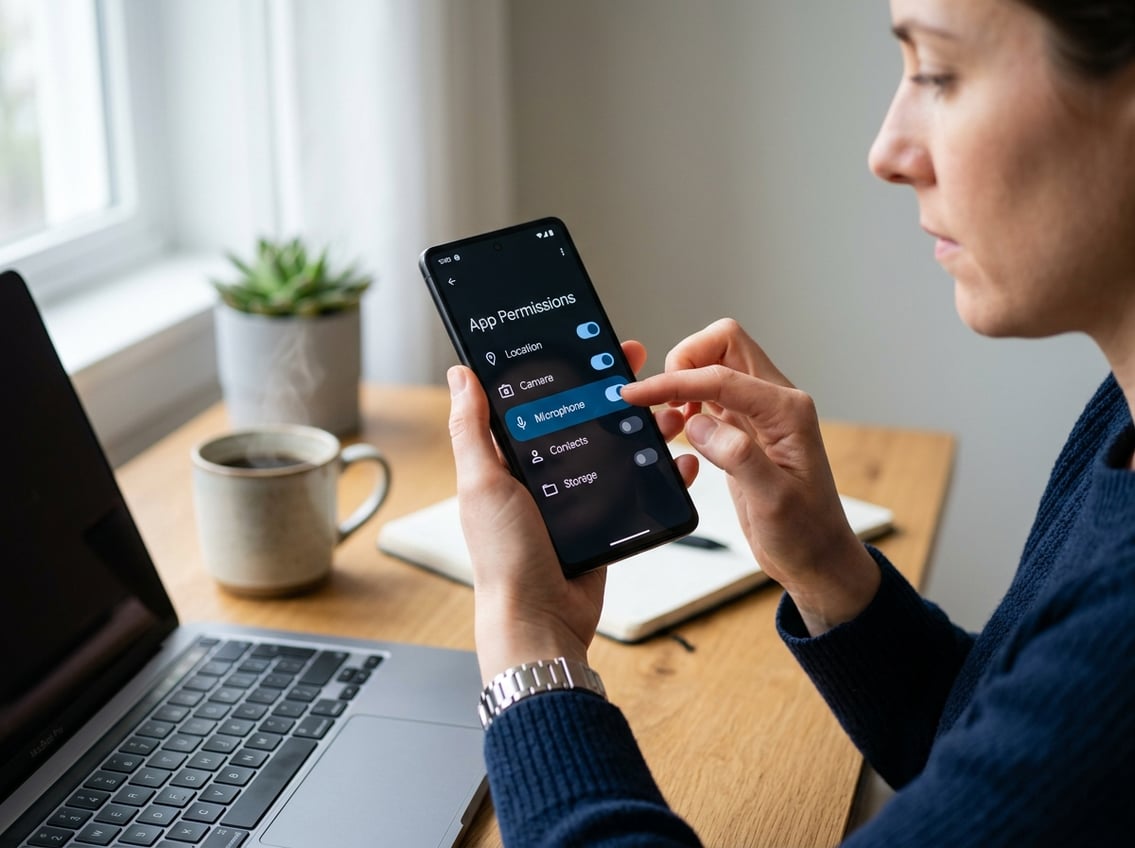
Checking which apps can access personal data helps identify suspicious software that may be monitoring a phone without permission. Both iPhone and Android devices include built-in tools that show exactly what information each app can collect.
Reviewing iPhone App Permissions
iPhone users can check app permissions by opening Settings and scrolling down to see the list of installed apps. Tapping any app reveals what permissions it has requested, including location, contacts, photos, and calendars.
Users should look for apps that have access to sensitive features they don’t actually need. For example, a basic calculator app shouldn’t need microphone or camera access. Any unfamiliar apps with extensive permissions deserve immediate attention.
To review permissions by category, users can go to Settings > Privacy & Security. This shows which apps have requested each type of permission. Apps that appear in multiple categories or have permissions that don’t match their stated purpose may be collecting data secretly.
Inspecting App Permissions on Android
Android phones provide a permissions manager that displays which apps are accessing data and when that access is happening. Users can access this by going to Settings > Privacy > Permission manager.
The permission manager groups access by type, such as camera, microphone, location, and contacts. Tapping each category shows every app with that permission. Apps with access to microphone, location, Bluetooth, and camera could theoretically listen, track location, and capture images.
Users should check for apps they didn’t install or don’t recognize. The Settings app list shows all installed applications, including hidden ones. Apps with device administrator access pose particular concern since these have elevated control over the phone.
Understanding iOS Privacy Settings
The Privacy & Security section in iPhone settings provides detailed control over what information apps can collect. The App Privacy Report feature tracks how often apps use the permissions granted to them over the past week.
Users can enable this report by going to Settings > Privacy & Security > App Privacy Report. It shows sensor access, network activity, and website visits made by each app. Frequent or unusual activity patterns may indicate monitoring software.
Location Services settings show whether apps use precise or approximate location. Users can set apps to access location only while using them, never, or ask each time. Spy apps often request “Always” location access to track movements continuously.
Managing Camera and Microphone Access
Phone manufacturers now provide ways to control which apps access the device’s camera or microphone. Both iPhone and Android display indicator dots when these sensors are active.
On iPhone, an orange dot appears when the microphone is in use, and a green dot shows camera access. Users can swipe down from the top-right corner immediately after seeing a dot to check which app triggered it.
Android 12 and newer versions show similar indicators in the status bar. Users can tap the indicator to see which app is using the sensor. Both platforms allow complete removal of camera or microphone access for any app through the permissions settings.
Apps that activate these sensors when not in active use require investigation. Gaming apps, flashlight apps, or weather apps should never need microphone access during normal operation.
Using Built-In Privacy Tools and Security Features
Both iPhones and Android phones include privacy tools that help users identify which apps access their data and control what information gets shared. These features let people review app behavior, limit location tracking, and manage how apps run in the background.
Checking the App Privacy Report on iPhone
The App Privacy Report on iPhone shows which apps have accessed sensitive data and sensors over the past seven days. Users can find this feature by opening Settings, then tapping Privacy & Security, and selecting App Privacy Report. The report must be turned on before it starts collecting data.
Once enabled, the report displays how often apps access the camera, microphone, contacts, and photos. It also shows which websites apps have contacted and when apps accessed location data. This information helps identify suspicious behavior, like a calculator app accessing the microphone or a wallpaper app tracking location.
The report organizes data by app and by sensor type. Users can tap any app to see detailed information about what it accessed and when. If an app shows unexpected access patterns, it may be spying on the user’s activity.
Disabling Precise Location on iPhone
iPhones let users disable precise location to limit how accurately apps can track their whereabouts. This setting provides apps with only an approximate location instead of exact coordinates. Users access this by going to Settings, selecting Privacy & Security, then Location Services.
Each app that uses location appears in the list with its own settings. Tapping an app reveals options including Never, Ask Next Time, While Using the App, and Always. Below these options sits a toggle for Precise Location.
Turning off precise location still allows apps to function while reducing tracking accuracy to several miles. Weather apps, navigation tools, and delivery services work better with precise location enabled. Simple games and shopping apps rarely need exact coordinates to operate properly.
Controlling Background App Refresh Features
Background app refresh allows apps to update content when not actively in use, but spy apps exploit this feature to continuously gather data. iPhone users can manage this by opening Settings and selecting General, then Background App Refresh. They can disable the feature entirely or control it for individual apps.
Turning off background refresh for suspicious apps prevents them from operating when the screen is locked. This also improves battery life and reduces data usage. Essential apps like messaging services and email clients need this feature enabled to deliver notifications promptly.
Android users find similar controls in Settings under Apps. They can select individual apps and restrict background activity through battery optimization settings. Monitoring which apps run in the background helps identify programs that shouldn’t be active when the phone isn’t in use.
Leveraging Antivirus and Anti-Spyware Apps
Antivirus apps provide an additional layer of protection by scanning for malicious behavior that built-in tools might miss. These programs detect spyware, trojans, and other threats that hide within legitimate-looking applications. Android devices benefit more from third-party security apps since the platform faces more malware threats than iOS.
Quality antivirus software monitors app behavior in real time and alerts users to suspicious activity. Features like app anomaly detection identify when programs suddenly start accessing sensors or data they didn’t use before. This catches spy apps that activate after sitting dormant on the device.
Users should download security apps only from official stores like Google Play or the Apple App Store. Reputable options include Norton, McAfee, and Bitdefender Mobile Security. These apps scan installed programs, check for unauthorized access attempts, and block malicious links in messages and emails.
Steps for Removing Spy Apps and Strengthening Device Security
Removing spy apps requires a systematic approach that starts with identifying and deleting suspicious software, then securing the device against future threats. Users should revoke unnecessary permissions, consider a factory reset if needed, and establish ongoing security habits to maintain privacy.
Manually Uninstalling Suspicious Apps
The first step involves reviewing all installed applications on the device. Users should open their phone’s settings and navigate to the apps or applications menu to see a complete list of installed software.
Any unfamiliar apps require immediate attention. Spy apps often disguise themselves with generic names like “System Update” or “Device Health.” Some hide their icons or masquerade as calculators and games to avoid detection.
To remove suspicious apps on Android, users should:
- Long-press the app icon if visible on the home screen
- Select “Uninstall” or “Remove”
- Navigate to Settings > Apps if the icon is hidden
- Find the suspicious app in the list
- Tap “Uninstall”
iPhone users need to locate the app, long-press its icon, and select “Remove App.” Some covert surveillance apps require additional steps for complete removal.
If an app cannot be uninstalled through normal methods, it may have administrator privileges. Users must revoke these privileges in the security settings before removal becomes possible.
Revoking High-Risk Permissions
After removing suspicious apps, users need to audit permissions for all remaining applications. Invasive spy apps exploit phone permissions to access contacts, location data, cameras, and microphones.
Android users should navigate to Settings > Privacy > Permission Manager. This shows which apps have access to sensitive features. Users should revoke permissions that seem unnecessary for an app’s core function.
iPhone users can check permissions under Settings > Privacy & Security. Each category shows which apps have requested access. Legitimate apps rarely need access to location, camera, and microphone simultaneously.
High-risk permissions to review:
- Location access (GPS tracking)
- Camera and microphone
- Contacts and call logs
- Text messages and phone
- Storage and media files
Users should also verify that Android’s Play Protect remains enabled. Disabled security features often indicate tampering by spy software.
Performing Factory Reset as a Last Resort
A factory reset completely erases all data and returns the phone to its original state. This nuclear option removes all apps, including deeply embedded spyware that resists standard removal methods.
Before resetting, users must back up important data like photos, contacts, and documents to cloud storage or a computer. The reset will delete everything on the device.
To factory reset an Android device, users navigate to Settings > System > Reset Options > Erase All Data. The phone will restart and prompt setup as if new. iPhone users go to Settings > General > Transfer or Reset iPhone > Erase All Content and Settings.
After the reset, users should change all passwords from a secure device. This includes email, social media, banking apps, and especially the phone’s lock screen code. Someone who installed spy software likely knows the old password.
Users should reinstall apps only from official stores and avoid restoring from old backups that might contain the spyware.
Adopting Long-Term Privacy Best Practices
Ongoing security requires establishing protective habits. Users should never share their device passcode or leave their phone unattended with people they don’t completely trust.
Essential security measures include:
- Enabling biometric locks (fingerprint or face recognition)
- Using strong, unique passwords for all accounts
- Installing apps only from official app stores
- Keeping the operating system updated
- Reviewing app permissions quarterly
Users should regularly check their phone bill for unusual data usage patterns. Spy apps often cause increased mobile data consumption as they transmit collected information.
Installing reputable security software adds another layer of protection. These tools can detect new spyware installations before they cause harm. However, users should research anti-spy apps carefully, as some malicious apps disguise themselves as security software.
Physical security matters too. Users should never accept phones as gifts from untrusted sources or allow repair shops unsupervised access for extended periods.
Frequently Asked Questions
Spy apps leave behind specific warning signs like battery drain and strange permissions. Understanding how to inspect device settings on both Android and iPhone helps users spot unauthorized monitoring.
What are the most common signs that a phone is being monitored without permission?
Battery drain is one of the clearest indicators that spy software may be running in the background. The phone may also overheat during normal use or when idle.
Unusual data usage spikes suggest an app is sending information to an external server. Strange background noise during calls can indicate microphone access by unauthorized software.
Apps requesting permissions they don’t need raise immediate red flags. A flashlight app asking for camera and microphone access has no legitimate reason for those permissions.
The phone may show texts or emails the user didn’t send. Frequent pop-ups, screen flickers, or unexplained shutdowns point to background activity from monitoring software.
How can I check an Android phone for suspicious apps with device settings and permissions?
Users should navigate to Settings > Apps to see all installed applications. Look for unfamiliar names like “System Cleaner” or “Wi-Fi Booster” that don’t appear on the home screen.
Many stalkerware apps use generic icons and labels to avoid detection. Apps with names that sound official but weren’t installed by the user require investigation.
Go to Settings > Privacy or App Permissions to review which apps have access to sensitive features. Check which apps can use the microphone, camera, location, or SMS.
Third-party apps with access to messages or the microphone need scrutiny. Any app with Device Admin privileges should be verified in Settings > Security > Device admin apps.
How can I check an iPhone for unauthorized monitoring through system settings and account activity?
Check Settings > VPN & Device Management for unknown profiles or MDM controls. These management profiles can give others remote access to the device.
Navigate to Settings > General > Background App Refresh to see which apps run in the background. Disable refresh for apps that don’t need constant access.
Users should visit appleid.apple.com and select Devices to see all devices signed into the Apple ID. Remove any unfamiliar devices immediately.
Review Settings > Privacy to see which apps have requested access to location, photos, contacts, and other data. Revoke permissions for apps that seem suspicious or unnecessary.
Which battery, data, and performance changes most strongly indicate hidden monitoring software?
Faster than normal battery drain combined with phone overheating points to apps running continuously in the background. This happens even when the phone appears idle.
Go to Settings > Battery to check which apps consume the most power. Unknown apps using significant battery resources need immediate investigation.
Unusual spikes in data usage appear in Settings > Data Usage. Apps quietly transmitting information use more data than normal activity would explain.
The phone becoming sluggish or laggy without obvious cause suggests hidden monitoring software consuming system resources. Apps taking longer to open or the phone taking excessive time to shut down are warning signs.
What steps can I take to identify and remove a suspicious app if it does not appear on the home screen?
Boot Android phones into Safe Mode by long-pressing the Power button, then tapping and holding “Power Off” until the Safe Mode option appears. Safe Mode disables all third-party apps including most spyware.
In Safe Mode, navigate to Settings > Apps to see the complete list of installed applications. Apps hidden from the home screen still appear in this system menu.
Check if any app has Device Admin access in Settings > Security > Device admin apps. Revoke admin privileges for suspicious apps before attempting to uninstall them.
If the Uninstall button appears greyed out, the app likely has admin privileges that must be removed first. After revoking admin access, the app can be uninstalled normally.
Which reputable free anti-spyware tools can help scan a phone for malicious or intrusive software?
Google Play Protect comes built into Android devices and scans apps automatically. Users can manually trigger a scan by opening the Play Store, tapping the profile icon, and selecting Play Protect.
Malwarebytes offers a free version for Android that detects adware, spyware, and other threats. The app scans installed applications and checks for privacy violations.
Avast Mobile Security provides free malware scanning for Android phones. It includes features to check app permissions and identify apps with suspicious behavior.
Bitdefender Mobile Security offers real-time detection of hidden apps and stalkerware for both iOS and Android. The app scans for renamed or disguised monitoring software that other tools might miss.