Quick answer: Modern parental monitoring apps can filter websites and apps, set screen-time limits, track your child’s location, block or approve app installs, and flag concerning messages or images across texts and social media. What they generally cannot do is read every encrypted chat, monitor a phone you never had access to set up, or stop a determined, tech-savvy teen from finding workarounds. The best results come from pairing the right app with an honest conversation — not from secret surveillance.
If you’re a parent trying to figure out what these tools actually deliver before you pay for one, this Infurpose guide breaks down every real capability, the hard limits nobody advertises, and how to choose based on your child’s age and the risk you’re actually worried about. We’ll keep it plain and practical, because “monitoring” means very different things depending on the app and the phone.
Last updated July 2026 · Written by Samuel Smith, who covers everyday phone privacy and digital safety at Infurpose for non-technical readers. It sticks to what these apps really do and don’t do, in plain English.
What parental monitoring apps actually do
At their core, parental monitoring apps give a parent visibility and control over a child’s device from a separate dashboard, usually on your own phone. The features cluster into five real jobs: content filtering, time management, location, app control, and activity alerts. Every major app — Bark, Qustodio, FamilyTime, MMGuardian, Canopy, Google Family Link, Apple Screen Time — is some combination of those five. Understanding the categories matters more than memorizing brand names, because the category tells you what’s realistically possible.
It helps to separate two philosophies up front. Control tools (like Apple Screen Time and Google Family Link) block, limit, and approve — they’re about setting boundaries. Monitoring tools (like Bark) watch content and alert you when something looks wrong — they’re about awareness. Many families use one of each. Knowing which problem you’re solving keeps you from overpaying for features you won’t use.
Content filtering and web blocking
Content filtering blocks categories of websites and apps — adult content, gambling, violence, and often social media — before your child can reach them. This is the most reliable capability across the board. Filters work by category (you toggle “adult content” on) and by custom blocklists (you add specific sites). Apps like Canopy specialize in real-time image filtering that can blur explicit pictures even on pages that aren’t on any blocklist yet.
The honest limit: filtering is strongest on Wi-Fi and on the device’s own browser. A child on cellular data, using a lesser-known browser, or connecting through a VPN can sometimes slip past category filters. No filter is a wall — it’s a speed bump that stops casual stumbling onto bad content, which for younger kids is most of the battle.
Screen time limits and scheduling
Screen-time controls let you cap total daily use, set limits per app, and schedule “downtime” when the phone locks — bedtime, school hours, dinner. Apple Screen Time and Google Family Link do this well and free; third-party apps like Qustodio and FamilyTime add cross-platform dashboards so you manage an iPhone and an Android from one place. You can typically grant “just 15 more minutes” remotely, or lock the device instantly.
Where it gets fuzzy: kids learn that changing the device clock, deleting and reinstalling an app, or using a second device resets some limits. The built-in Apple and Google tools are harder to dodge than most third-party timers because they’re baked into the operating system. If enforceable limits are your main goal, start with the native tools before paying for an add-on.
Location tracking and geofencing
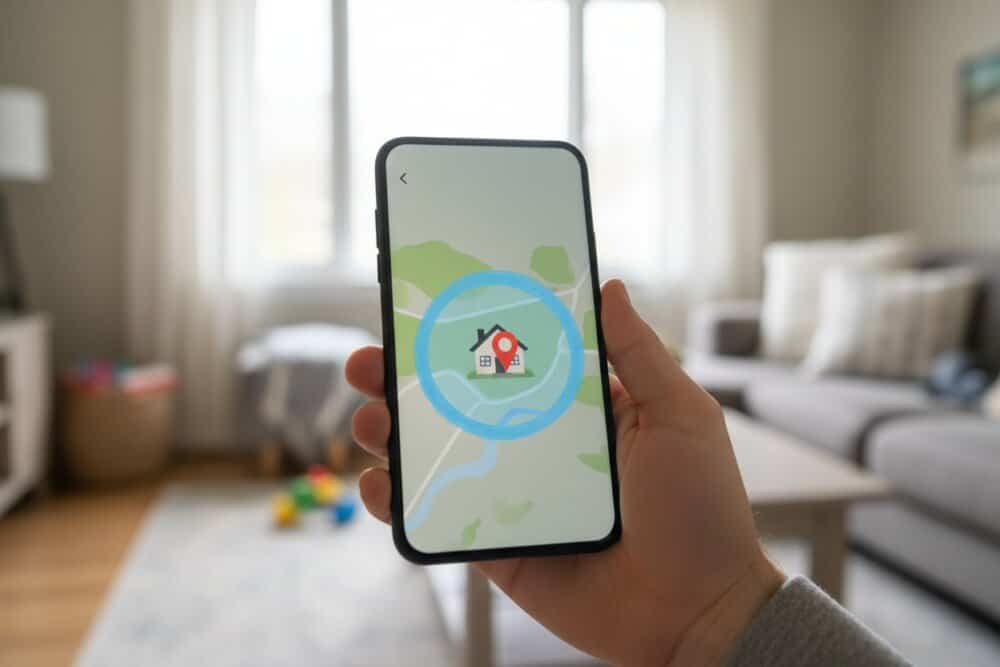
Location features show where the child’s phone is, keep a location history, and can send a geofence alert when they arrive at or leave a place — school, home, a friend’s house. This is one of the most accurate and dependable capabilities, since it rides on the phone’s GPS. Family-focused apps like Life360 built their reputation here, and most monitoring suites include a version of it.
The limit is simple and physical: location tracking shows where the phone is, not where the child is. A phone left at a friend’s house, powered off, or out of battery goes dark. Location is excellent for logistics and peace of mind, but it isn’t a tether — and older teens know that. For a deeper look at how phone location works and its privacy tradeoffs, see our guide on whether your phone is being tracked and how to tell.
App control and purchase approval
App control lets you approve or block new app installs, remove apps remotely, and require your sign-off before a download or in-app purchase goes through. Google Family Link and Apple’s “Ask to Buy” handle this natively; MMGuardian and others add contact management and the ability to restrict who can call or text. For younger children this is arguably the single most useful control — it stops the problem before an app is even installed.
The catch is age and account structure. These controls work cleanly when the child’s device is set up under a proper child account (a Google account managed by Family Link, or a child Apple ID in Family Sharing). If a teen has an adult account or knows the account password, approval controls weaken quickly. Setting up the account correctly from the start is what makes app control stick.
Message and social media monitoring
This is the feature parents ask about most, and the one with the widest gap between promise and reality. Monitoring-first apps like Bark scan texts, email, and dozens of social and messaging platforms for signs of bullying, self-harm, predators, and explicit content, then alert you only when something concerning appears — without dumping every message in your lap. Bark’s pitch is that it screens more messaging platforms than any competitor, and for many families that “alert me only when it matters” model is the right balance of safety and trust.
Here are the real limits, stated plainly. Fully end-to-end encrypted apps — think Signal, and much of WhatsApp and iMessage content — are difficult or impossible for third-party apps to read, because encryption is doing exactly what it’s designed to do. Monitoring often depends on the app having deep permissions or an installed companion, which iOS restricts more tightly than Android. So the same monitoring app can see more on an Android phone than on an iPhone. Anyone promising to read everything on any phone is overselling.
What parental monitoring apps cannot do
It’s worth collecting the limits in one place, because knowing them prevents a false sense of security:
They can’t reliably read end-to-end encrypted chats. Signal and similar apps are built to be unreadable by outsiders, including monitoring software.
They can’t beat a determined, tech-savvy teen forever. Factory resets, second devices, borrowed phones, and VPNs are all workarounds older kids discover.
They can’t monitor a device you never controlled. Most apps require you to install and configure them on the child’s phone; you can’t remotely bug a phone you’ve never touched.
They can’t replace conversation. No app teaches judgment. The tool buys you awareness and time; the parenting still has to happen.
They can’t legally monitor anyone once they’re an adult. Monitoring an 18-year-old’s device without consent can cross into the same legal territory as spying on any other adult.
Is it legal and is it the right call?
In the United States, parents generally have the legal right to monitor a minor child’s device that the parent owns or provides. That right narrows as the child gets older and disappears when they become a legal adult. Laws vary by state, and this is information rather than legal advice — if you’re unsure, a family attorney can speak to your situation.
The ethical question is separate from the legal one. Child-safety experts increasingly favor transparency over secrecy: telling your child what you monitor and why tends to preserve trust and actually keeps them talking to you, while secret surveillance discovered later can rupture the relationship you’re trying to protect. Monitoring a 7-year-old’s tablet is a different decision than reading a 16-year-old’s DMs. Match the level of oversight to the age and the specific risk, and revisit it as they grow.
How to choose the right app
Choose based on the problem you’re actually solving, not the longest feature list:
Young kids (under ~10): Start free with Apple Screen Time or Google Family Link. Content filtering, app approval, and time limits cover almost everything you need.
Tweens (~10–13): Add a monitoring layer if you’re worried about messaging and social media. Bark is the go-to for alert-based message scanning; Qustodio is strong for cross-platform filtering plus a free tier.
Teens (14+): Lean toward location, geofencing, and light-touch alerts over heavy content surveillance, and pair it with open conversation. Heavy-handed monitoring at this age usually backfires.
Cross-platform households: If you’re juggling iPhones and Androids, a paid suite (Qustodio, FamilyTime) that manages both from one dashboard is worth it.
For a head-to-head on the most popular monitoring suites, see our comparison of Bark vs Qustodio vs mSpy, and if a family-locator app is what you’re weighing, our look at whether Life360 is safe.
From what I’ve seen in the research, parents say Apple Screen Time and Google Family Link work reasonably well for basic limits, Qustodio gives better visibility, and Bark tends to be stronger on Android. But determined kids still get around all of them — learning the passcode, using saved passwords, changing the date or time, signing out, or finding loopholes online. No app replaces clear rules and occasionally checking the phone yourself.
Setting it up so it actually works
The single biggest reason monitoring fails isn’t the app — it’s setup. Do these to make it stick: create the child’s device under a proper managed child account from the start; set a device passcode the child doesn’t know so settings can’t be changed; install the companion app if the platform requires one (more often on Android); and turn on tamper alerts so you’re notified if monitoring is disabled. Then re-check the settings every few months, because OS updates and new apps can quietly open gaps. A monitoring app you set once and forget will drift out of date.
If you are setting up monitoring for your own child, the Bark Home device on Amazon adds whole-network filtering alongside the app.
Traveling soon? Lock down every device before you go.
Your phone, laptop, and tablet all carry your accounts, photos, and passwords — and every one of them is more exposed on hotel Wi-Fi, in airports, and away from home. Our free Travel Security Kit Builder walks you through a personalized checklist to protect whatever you’re taking with you.
Some can, with limits. Monitoring apps like Bark scan SMS and many messaging platforms for concerning content and alert you, and Android generally allows deeper access than iPhone. Fully end-to-end encrypted apps like Signal usually can’t be read by any third-party monitoring tool.
Do parental monitoring apps work on iPhone?
Yes, but with tighter limits than on Android. Apple’s built-in Screen Time handles filtering, time limits, and app approval well. Third-party message and social-media monitoring is more restricted on iOS because Apple limits how deeply outside apps can access the system.
Can my child tell if I’m monitoring their phone?
Often yes, and experts recommend telling them anyway. Many apps show an icon or profile on the device, and teens frequently notice. Being upfront about what you monitor and why tends to protect trust better than secret surveillance that’s later discovered.
What’s the difference between parental controls and monitoring?
Parental controls (like Screen Time and Family Link) block, limit, and approve — they set boundaries. Monitoring apps (like Bark) watch content and alert you to problems — they create awareness. Many families combine one of each.
Can a teenager get around parental controls?
A determined, tech-savvy teen often can — through factory resets, second devices, borrowed phones, or VPNs. Native Apple and Google controls are the hardest to bypass. This is why child-safety experts stress conversation alongside tools rather than relying on software alone.
Are free parental control apps good enough?
For younger children, often yes. Apple Screen Time and Google Family Link are free and cover filtering, time limits, and app approval. You typically pay for advanced message and social-media monitoring, cross-platform dashboards, and detailed alerts — features that matter more as kids get older.
The bottom line
Parental monitoring apps are genuinely useful for filtering content, managing screen time, tracking location, and getting early warnings about serious risks — but they are tools, not guarantees. They work best when the account is set up correctly, the app is matched to your child’s age, and the technology sits alongside an honest conversation rather than replacing it. Start with the free native controls, add a monitoring layer only for the risks you’re actually facing, and revisit the setup as your child grows. For more on locking down phones and protecting your family online, explore the rest of the guides here at Infurpose.
Samuel Smith is a digital privacy writer and consumer technology researcher focused on making smartphone security understandable for everyday people. He covers spyware detection, app permission audits, phone account security, and privacy settings — written for people who are worried about who might be watching through their phone, not for IT professionals. His guides at Infurpose translate complex security topics into plain-language steps anyone can follow without a technical background.
Fake apps slip into official stores. Learn the biggest tells — developer name, downloads, reviews, permissions — so you can spot a fake before you install it.