

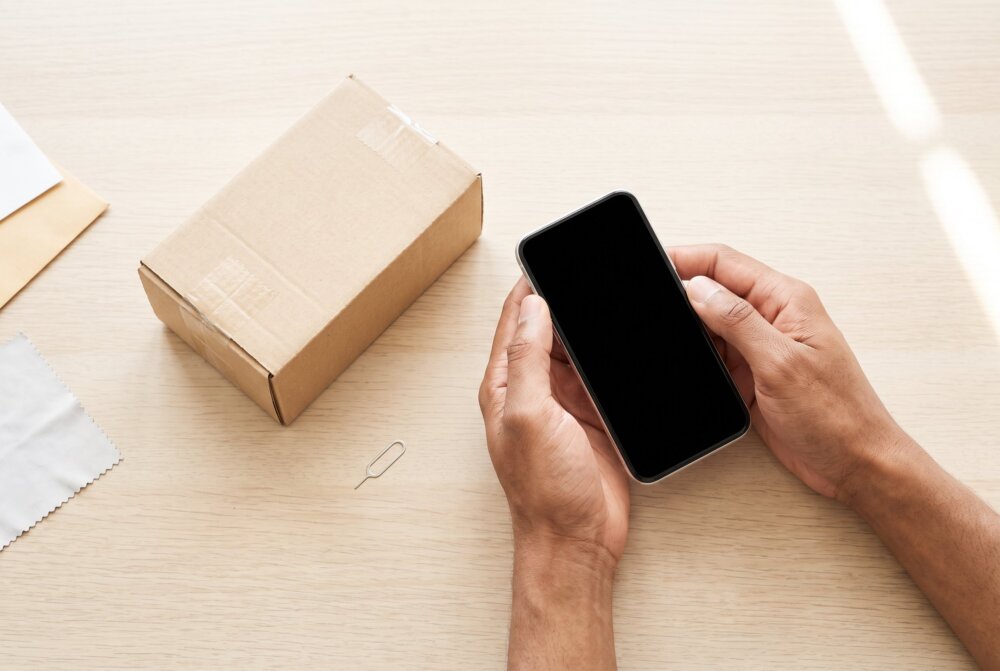
Quick answer: Before you sell or trade in your phone, do five things in order: back up your data, sign out of your accounts (iCloud and Find My on iPhone, your Google account on Android) to turn off the activation lock, remove your SIM and any SD card, run a full factory reset, and then confirm the phone no longer shows your account. Skipping the sign-out step is the big mistake — it can leave the phone locked to you or your data recoverable. The whole process takes about 15–20 minutes.
A phone is the single most sensitive device most people own — photos, messages, banking apps, saved passwords, and location history all live on it. At InFurpose, we treat “prepping a phone to sell” as a security task, not just a cleanup. Do it in the wrong order and you can either hand a stranger a treasure chest of personal data, or lock the device so the buyer can’t use it and you get hit with a return. Here’s the correct order for both iPhone and Android.
Written by Samuel Smith — consumer-technology writer and digital-privacy researcher at InFurpose.
Step 1: Back up everything first
Once you factory reset, the data is gone, so back up before you wipe. On iPhone, back up to iCloud (Settings → your name → iCloud → iCloud Backup) or to a computer. On Android, back up to your Google account (Settings → System → Backup) or to Google One, and make sure photos are synced to Google Photos. Double-check that the backup actually completed before moving on — an interrupted backup is worse than none because it gives false confidence.
Step 2: Sign out of your accounts (this turns off activation lock)
This is the step people skip, and it’s the most important one. Modern phones have theft protection — Activation Lock on iPhone, Factory Reset Protection on Android — that ties the device to your account. If you reset the phone without signing out first, it can boot up still demanding your password, leaving the buyer with a useless brick.
On iPhone: Go to Settings → your name, scroll down, and tap Sign Out. Enter your Apple Account password to turn off Find My and Activation Lock. (If you plan to erase next, you can also use “Erase This iPhone,” which signs you out as part of the wipe.) For a full walkthrough of locking down that account, see our guide on securing your Apple ID login.
On Android: Go to Settings → Passwords & accounts, select your Google account, and tap Remove account. Removing the account before the reset disables Factory Reset Protection so the next owner can set the phone up cleanly. Our guide to securing your Google account covers managing devices tied to your login.
Step 3: Remove your SIM and SD card
Pop out the physical SIM card and any microSD card — they can hold contacts, photos, and messages, and they don’t get erased by a factory reset. If you have an eSIM, transfer or delete it: on iPhone, Settings → Cellular → your line → delete eSIM (your carrier can move it to your new phone); on Android, Settings → Network & internet → SIMs → erase eSIM. Don’t leave either in the device you’re selling.
Step 4: Factory reset the phone

Now wipe it. iPhone: Settings → General → Transfer or Reset iPhone → Erase All Content and Settings. Android: Settings → System → Reset options → Erase all data (factory reset) — the exact path varies slightly by brand (on Samsung it’s Settings → General management → Reset → Factory data reset).
Good news on data security: both iPhones and modern Android phones encrypt storage by default, so a factory reset effectively throws away the encryption key and makes old data unrecoverable — you don’t need special “shredder” apps. Just make sure encryption is on (it is, on any reasonably current device) and let the reset finish completely.
Step 5: Confirm it’s clean before it leaves your hands
From experience: Back up everything first, then confirm the backup actually worked. Move your phone number, SIM/eSIM, authenticator apps, and 2FA access to the new phone and test them. Sign out of your Apple or Google account, remove any physical SIM or SD card, then do a full factory reset from Settings. After the reset, turn the phone back on and make sure it stops at the fresh “Hello” or “Welcome” setup screen and no longer asks for your account — only then should it leave your hands.
After the reset, the phone should boot to the initial setup screen — the same “Hello” / “Welcome” screen it had out of the box. Walk one step into setup to confirm it does not ask for your Apple ID or Google password. If it does, the activation lock is still on; go back, restore from your backup, sign out properly, and reset again. Also log in to your account from another device and remove the old phone from your trusted-devices list.
A quick note on trade-in programs
Trade-in services (carriers, Apple, Samsung, Best Buy) run their own data wipe, but never rely on that alone — always wipe and sign out yourself first. The sign-out step also matters for your trade-in value: a device still locked to an account is often rejected or downgraded. Remove any cases and check that the phone matches the condition you reported.
The bottom line
Selling a phone safely is about order of operations: back up, sign out of your accounts to kill the activation lock, pull the SIM and SD card, factory reset, then verify the phone no longer asks for your login. Because today’s phones encrypt by default, a proper reset makes your old data unrecoverable — but only if you sign out first. Fifteen minutes of care protects both your privacy and your trade-in value.
Frequently asked questions
Is a factory reset enough to erase my data before selling?
On any modern iPhone or Android phone, yes — storage is encrypted by default, so a factory reset discards the key and makes old data unrecoverable. The catch is that you must sign out of your accounts first; otherwise the phone can stay locked to you even after the wipe.
What happens if I forget to sign out of iCloud or my Google account?
The phone can boot up still asking for your Apple ID or Google password (Activation Lock / Factory Reset Protection), making it unusable for the buyer. You’ll usually have to retrieve your password or remove the device remotely from your account. Always sign out before the reset to avoid this.
Do I need to remove my SIM card before selling?
Yes. A factory reset wipes the phone’s internal storage but not a physical SIM or SD card, which can hold contacts and media. Remove both, and delete or transfer any eSIM through your carrier so your number doesn’t go with the device.
Should I wipe the phone myself if I’m using a trade-in program?
Absolutely. Trade-in programs do their own wipe, but you should never trust that with your personal data. Back up, sign out, remove your SIM/SD card, and factory reset before you ship or hand it over — both for privacy and to avoid a lower trade-in offer.
Can someone recover my photos after a factory reset?
On encrypted devices (all current iPhones and modern Android phones), a factory reset makes recovery effectively impossible because the encryption key is destroyed. The real risk is leaving data on an unremoved SD card or forgetting to sign out, not the reset itself.
How long before selling should I prep my phone?
Do it right before the phone leaves your hands, after you’ve moved everything to your new device. That way your backup is current and you’re not without a working phone in between. The full process — back up, sign out, remove cards, reset, verify — takes about 15 to 20 minutes.
Keep your next phone locked down too — browse InFurpose for step-by-step guides to securing your Apple ID and your Google account.
Samuel Smith is a consumer-technology writer and digital-privacy researcher at InFurpose who has spent years testing phone-security tools and safely wiping and trading in used phones.