


Quick answer: You can tell if your phone camera is hacked by watching for a camera indicator light that turns on by itself, photos or videos in your gallery you never took, a battery that drains fast and a phone that runs hot when idle, sudden spikes in data usage, and unfamiliar apps that hold camera permission. No single sign is proof on its own, but two or three together are a real warning. The fastest fix is to revoke camera access from apps you don’t recognize, update your phone, run a reputable security scan, and, if the signs continue, back up your data and do a factory reset.
Your phone camera is one of the most private things you own, so the idea that a stranger could be watching through it is unsettling. The good news is that a genuinely hacked camera almost always leaves a trail. Below are the real signs to look for, how to confirm what’s happening, and the exact steps to shut it down.
From experience: Almost every time I’ve helped someone chase down that green camera dot, it turned out to be an app permission, the Camera app getting bumped on by accident, or an iOS quirk — not someone secretly watching. The fastest move is to swipe down into Control Center right away and see which app just used the camera. (Honestly, half the time it’s me turning mine on from inside my pocket.)
Can someone really watch you through your phone camera?
Yes, but it is harder than most viral videos suggest. To secretly access your camera, an attacker generally needs one of three things: a malicious app you installed (often disguised as a game, wallpaper, or “system” tool), spyware someone with physical access to your phone loaded on purpose, or a serious operating-system flaw that hasn’t been patched yet. Everyday phishing links and sketchy websites usually can’t flip your camera on by themselves because both iOS and Android force apps to ask for camera permission first.
That permission system is also your best defense. If you keep your phone updated and only grant camera access to apps that clearly need it, the window for an attacker gets very small. Most “hacked camera” cases actually come down to a monitoring or stalkerware app that was installed by someone the victim knows — which is a different problem than a faceless hacker, and one we cover in our guide to what stalkerware is and how it works.
What are the signs your phone camera is hacked?

Look for a cluster of these, not just one:
- The camera indicator turns on when you’re not using it. On iPhone (iOS 14 and later) a green dot appears in the top-right whenever the camera is active; Android shows a similar green camera icon. If it flashes while you’re on the home screen or reading, note which app triggered it.
- Photos or videos you didn’t take. Unfamiliar images, screenshots, or short clips in your gallery or cloud backup can mean something is capturing quietly in the background.
- Your battery drains unusually fast and the phone feels warm when idle. Recording and uploading video is heavy work, so a phone that’s hot in your pocket while you’re doing nothing is a flag.
- Data usage jumps for no reason. Secretly streamed photos and video have to leave your phone somehow. A sudden climb in cellular or Wi-Fi data — especially from an app you don’t recognize — is one of the earliest signs.
- “Camera in use” errors or a laggy camera app. If you open your camera and get a “camera is already in use” message, another process may have grabbed it first.
- Strange apps with camera permission. An app you don’t remember installing that can reach your camera is exactly what you’re hunting for.
Keep in mind that advanced spyware can sometimes suppress the indicator light, so don’t treat a quiet green dot as an all-clear. Trust the pattern of signs, not any single one. Many of these overlap with a broader compromise, so it’s worth comparing them against the full list of signs your phone is hacked.

How do you check if your camera has been hacked?
Run through these checks in order — they take about ten minutes and don’t require any special tools.
1. Review which apps can use your camera. On iPhone, go to Settings > Privacy & Security > Camera and look at the list. On Android, open Settings > Security & privacy > Privacy > Permission manager > Camera. Turn off camera access for anything that has no obvious reason to need it. Our step-by-step walkthroughs for auditing app permissions on iPhone and auditing app permissions on Android make this quick.
2. Check your privacy dashboard. Android’s Privacy Dashboard (Settings > Security & privacy > Privacy) shows a timeline of which apps used your camera and when. iPhone users can check Settings > Privacy & Security > App Privacy Report. If an app accessed the camera at 3 a.m. while your phone sat on the nightstand, that’s your answer.
3. Scan your installed apps. Scroll your full app list for anything unfamiliar, generic-sounding (“Device Health,” “System Service”), or that has no icon. These are common disguises for spyware.
4. Look at your battery and data breakdown. Settings will show battery and data usage per app. An unknown app near the top of either list deserves a closer look.
5. Run a reputable mobile security scan. A trusted security app can flag known spyware and malware you might miss by eye.
How do you stop someone from accessing your phone camera?
If your checks turned up something suspicious, work through this in order:
- Revoke camera permissions from every app you don’t fully trust. This alone cuts off most snooping instantly.
- Delete unfamiliar apps. Uninstall anything you didn’t install yourself or can’t identify. If an app won’t uninstall, it may have device-admin rights — remove those first in Settings.
- Update your operating system. Many camera exploits rely on flaws that Apple and Google have already patched. Installing the latest update closes those doors.
- Change your important passwords from a device you trust, and turn on two-factor authentication so a stolen password isn’t enough. Our guide on setting up two-factor authentication on your phone covers this.
- If signs continue, back up and factory reset. A clean reset removes almost all spyware. Follow our walkthrough on using a factory reset to remove spyware so you don’t restore the infection along with your backup.
As a low-tech stopgap, a small sticker or camera cover over the lens guarantees nothing is being seen while you sort things out. It won’t stop microphone access, but it buys peace of mind.
What should you do if someone you know installed it?
If you suspect a partner, ex, or someone you live with is behind the monitoring, your physical safety comes before anything technical. Removing spyware can sometimes tip that person off and escalate the situation. Before you change a thing, consider reaching out to the National Domestic Violence Hotline at 1-800-799-7233 or the National Network to End Domestic Violence (NNEDV) Safety Net project at techsafety.org. They can help you build a safety plan first. You may also want to review our guide on whether a spouse is spying on your phone.
How can you keep your camera safe going forward?
A few habits make a real difference. Install apps only from the official App Store or Google Play, and skim the permissions before you tap install. Keep your phone updated — those updates are the single most effective protection against camera exploits. Set a strong screen passcode and enable Face ID or fingerprint unlock so no one can quietly load spyware in the two minutes you leave your phone on a desk. Audit your camera and microphone permissions every few months. And if you ever lend your phone or send it in for repair, treat your passwords as potentially exposed afterward.
Do these consistently and the odds of a hacked camera drop dramatically. If you want a broader tune-up, our overview of how to stop someone from tracking your phone pairs well with the steps above.
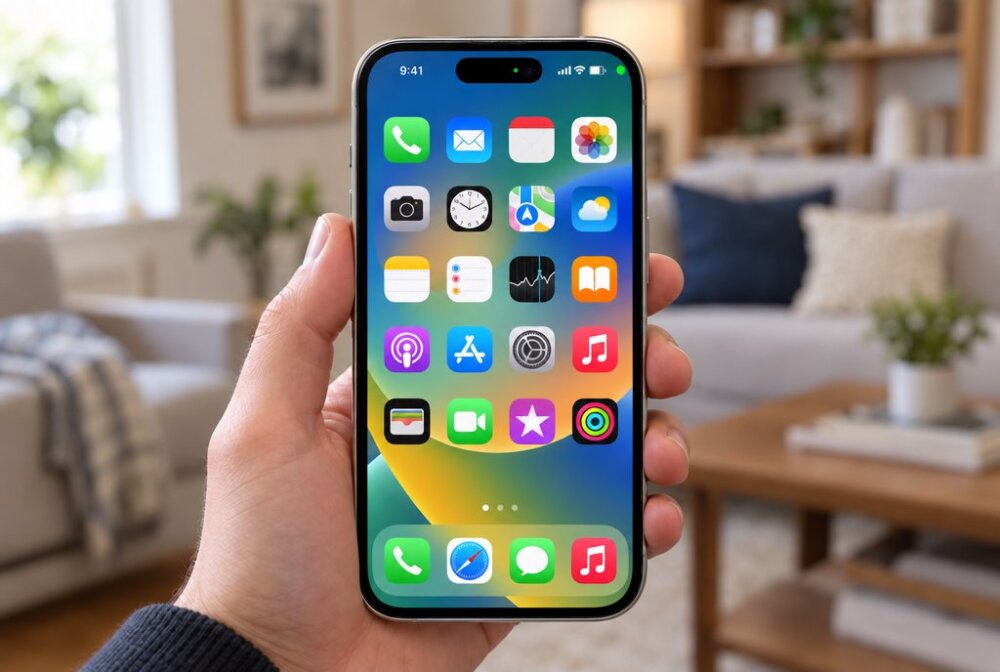
On Android, a trusted security app such as Bitdefender Total Security can scan for spyware that quietly taps the camera. On iPhone, the camera indicator dot and app permissions do that job for you.
Traveling soon? Lock down every device before you go.
Your phone, laptop, and tablet all carry your accounts, photos, and passwords — and every one of them is more exposed on hotel Wi-Fi, in airports, and away from home. Our free Travel Security Kit Builder walks you through a personalized checklist to protect whatever you’re taking with you.
Frequently asked questions
Can my phone camera be hacked when the phone is off?
No. When your phone is fully powered down, the camera has no power and cannot record or transmit. The risk exists only while the phone is on. If you’re truly concerned in a sensitive moment, powering off — or covering the lens — removes the possibility entirely.
Does the green or orange dot always mean I’m being watched?
Not necessarily. The green dot means an app is actively using your camera, which is normal when you’re on a video call or using the camera app. It’s only a concern if it appears when you aren’t knowingly using the camera. The orange dot means the microphone is in use.
Can someone hack my camera just by sending a link?
It’s very unlikely on an updated phone. Modern iOS and Android require an app to request camera permission, so a single link usually can’t flip your camera on. The real risk comes from installing a malicious app or from someone with physical access to your device.
Will a factory reset remove a camera hack?
In almost all cases, yes. A factory reset wipes installed apps and spyware. The main exception is restoring from an infected backup, which can bring the problem back — so set the phone up fresh or restore selectively.
Do iPhones get their cameras hacked, or just Android?
Both can be targeted, though iPhones are generally harder to compromise because of Apple’s tighter app controls. No phone is immune, especially against stalkerware installed by someone with your passcode. Keeping either platform updated is the key protection.
How can I tell which app used my camera?
On Android, check the Privacy Dashboard for a timeline of camera access by app. On iPhone, enable and review the App Privacy Report under Settings > Privacy & Security. Both show you exactly which app reached your camera and when.
Written by Samuel Smith, a consumer-technology writer and digital-privacy researcher who has worked through these phone-camera security checks on his own devices before writing this guide.