

Quick Answer: To secure your phone from hackers, lock it with a 6-digit-or-longer passcode plus biometrics, turn on automatic operating-system and app updates, enable two-factor authentication on your important accounts, only install apps from the official App Store or Google Play, keep Find My iPhone or Find My Device switched on, and avoid tapping links in unexpected texts or emails. Those six habits stop the overwhelming majority of real-world phone attacks.
Most people picture phone hacking as a hooded expert breaking through some invisible wall. In reality, almost every phone that gets compromised is compromised through something simple: a reused password, an out-of-date operating system, a shady app, or a link the owner tapped without thinking. That is good news, because it means you do not need to be technical to protect yourself. You just need a short, repeatable checklist. This guide from InFurpose walks you through exactly what to lock down, in the order that matters most.
Written by Samuel Smith — consumer-technology writer and digital-privacy researcher at InFurpose.
What is the single most important step to secure your phone?
The most important step is keeping your phone’s operating system and apps fully updated, because updates close the security holes that hackers rely on. The U.S. Federal Trade Commission puts software updates near the top of its own phone-security advice for exactly this reason: updates “often include critical patches and protections against security threats.” When you delay an update for weeks, you are leaving a known, published door unlocked.
Turn on automatic updates so you never have to think about it. On an iPhone, go to Settings, General, Software Update, and switch on Automatic Updates. On Android, open the Google Play Store, tap your profile, then Settings, Network preferences, Auto-update apps, and pick “Over any network” or “Over Wi-Fi only.” Do the same for the OS in your system settings. This one habit quietly protects you around the clock.
How should you lock your phone screen?
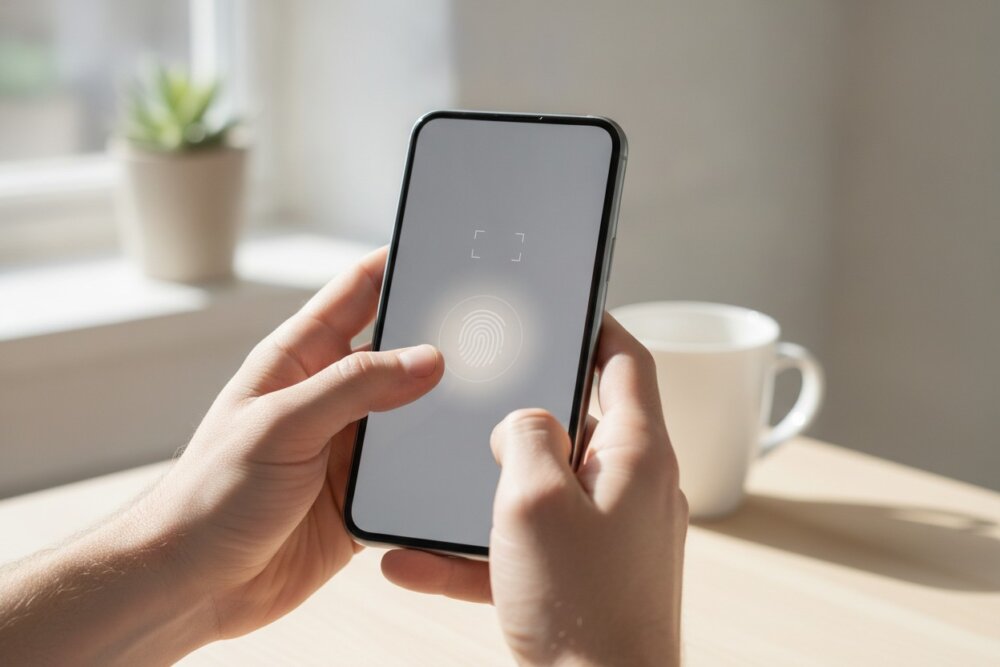
Lock your phone with a passcode of at least six digits and add a fingerprint or face unlock on top of it. The FTC recommends setting your phone to lock automatically when you are not using it and using at least a six-digit code rather than a four-digit one. A four-digit PIN has only 10,000 combinations; a six-digit code has a million, which makes guessing far harder if your phone is lost or stolen.
Biometrics like fingerprint and face recognition are not just convenient, they mean you can use a long passcode without the daily annoyance of typing it. Set your auto-lock to 30 seconds or one minute, and never leave your phone unlocked and unattended in public. A shoulder-surfer who watches you type a simple code and then grabs your phone can do far more damage than a remote hacker.
Why does two-factor authentication matter so much?
From experience: I became a believer in two-factor authentication after it saved my crypto. Someone got far enough into my account — past my email — that my coins could have been moved, but they couldn’t get past the 2FA. Since then I don’t treat 2FA as optional on any account tied to real money.
Two-factor authentication (2FA) matters because it stops an attacker who already has your password. Even if your email or bank password leaks in a data breach, 2FA means the attacker still needs a second code from your phone or an authenticator app to get in. It is the difference between one lock and two.
Turn on 2FA for your most valuable accounts first: your email, your Apple ID or Google account, your bank, and any account tied to your money. Where you can, use an authenticator app (like Google Authenticator or Authy) rather than text-message codes, because SMS codes can be intercepted through SIM swapping. For a full walkthrough, see our guide on how to secure your phone accounts with 2FA and strong passwords.
Where should you download apps from?
Only download apps from the official Apple App Store or Google Play Store, and be skeptical even there. Both stores screen apps for malware, so the biggest risk comes from “sideloading,” which means installing apps from websites, links, or unofficial stores. That is one of the most common ways spyware and stalkerware end up on a phone.
Before you install anything, check the developer name, the number of reviews, and the permissions it requests. A flashlight app that wants access to your contacts, microphone, and location is a red flag. Periodically review the permissions your installed apps already have and revoke anything that does not make sense. If you are worried something hidden is already running, our guide on how to find and remove spy apps shows you how to check.
How do you stay safe on public Wi-Fi and networks?
Assume public Wi-Fi is not private, and avoid logging into banking or entering passwords while connected to it unless you trust the network. Open networks at airports, cafes, and hotels can let others on the same network snoop on unencrypted traffic. The good news is that most major apps and websites now use encryption (HTTPS) by default, which closes much of that gap.
For an extra layer on untrusted networks, a reputable VPN encrypts all of your phone’s traffic. It is not a cure-all, but it helps in specific situations. We break down exactly when it is worth it in do I need a VPN on my phone? And if you want the deeper picture on network snooping, read is public Wi-Fi safe on your phone?
How do you avoid phishing links and scam messages?
Never tap a link in an unexpected text, email, or pop-up, no matter how urgent it sounds. Phishing is now the number-one way ordinary people get hacked, because it skips the technology entirely and tricks you into handing over a password or installing something yourself. Banks, delivery companies, and government agencies do not ask you to “verify your account” through a surprise link.
When a message creates urgency (“your account will be closed in 24 hours”), slow down. Open the app or type the company’s website address yourself instead of using the link. Learn the specific red flags in our guide to spotting a phishing text. If you ever do tap a suspicious link and enter a password, change that password immediately from a device you trust.
What should you do to prepare for a lost or stolen phone?
Turn on your phone’s built-in tracking and remote-wipe feature now, before you ever need it. On an iPhone, enable Find My iPhone; on Android, enable Find My Device. These let you locate the phone, lock it remotely, display a message, and erase everything if it is truly gone, so a thief cannot dig through your accounts.
Also back up your phone regularly to the cloud or a computer, as the FTC advises, so that wiping a lost device does not mean losing your photos and contacts. A phone you can remotely lock and erase is far less valuable to a thief and far less dangerous to you.
Your quick phone-security checklist
Run through this list once and you will be ahead of most phone owners:
- Updates: Automatic OS and app updates turned on.
- Lock: Six-digit-or-longer passcode plus fingerprint or face unlock, with fast auto-lock.
- 2FA: Enabled on email, Apple/Google account, bank, and financial apps, using an authenticator app where possible.
- Apps: Installed only from the official store, with permissions reviewed and trimmed.
- Networks: No sensitive logins on untrusted public Wi-Fi; VPN for extra cover when needed.
- Links: No tapping links in unexpected messages; verify by opening the app directly.
- Recovery: Find My iPhone / Find My Device on, and regular backups running.
If you want an extra layer beyond the free settings above, a reputable security app adds malware scanning and scam-link blocking. Bitdefender Total Security is a well-reviewed option that covers your phone and computer on one subscription.
Frequently asked questions
How do I know if my phone has already been hacked?
Watch for sudden battery drain, your phone running hot when idle, unfamiliar apps, spikes in data use, pop-ups, or accounts sending messages you did not write. Any one of these can have an innocent cause, but several together are a warning. Our guide on the signs your Android phone has been hacked and how to know if your phone is hacked walk through what to look for.
Can someone hack my phone with just my phone number?
With your number alone, someone generally cannot take over your phone, but a number is a starting point for scams like SIM swapping and phishing. The bigger risk is what an attacker does with that number, not the number itself. We cover the real risks in can someone hack your phone with just your number?
Do I need antivirus software on my phone?
iPhones rarely need traditional antivirus because of how iOS is locked down, while Android users may benefit from a reputable security app, especially if they sideload. For most people, keeping the OS updated and sticking to the official store does more than any add-on. See do iPhones need antivirus? for the honest answer.
Is it safe to use fingerprint or face unlock?
Yes. Biometric unlock is generally safer than a short PIN for everyday use because it lets you pair a long passcode with quick access. Your fingerprint and face data are stored securely on the device itself, not uploaded to the company. Keep a strong passcode as the backup, since that is what protects the phone when biometrics fail.
How often should I change my passwords?
You do not need to rotate strong, unique passwords on a schedule; change a password immediately if a service reports a breach or you suspect it leaked. The more important habit is using a different password for every account, ideally through a password manager, so one leak never unlocks the rest of your life.
Will a factory reset remove a hacker from my phone?
A factory reset removes most malware and spyware by wiping the device back to its original state, which is why it is a strong last resort. Just be sure to change your account passwords afterward from a clean device and restore from a backup you trust, not one that might contain the problem. For the full recovery process, see how to remove a hacker from your phone.
The bottom line
Securing your phone is not about buying the fanciest tool, it is about closing the easy doors: update automatically, lock the screen properly, turn on 2FA, stick to the official app store, be careful on public networks, never trust surprise links, and set up remote tracking. Do those seven things and you have shut down almost every path an attacker actually uses. Explore more phone-security guides at InFurpose to keep the rest of your digital life just as protected.
Samuel Smith is a consumer-technology writer and digital-privacy researcher at InFurpose who has spent years testing phone-security tools and turning them into plain-English steps — including the settings covered in this guide.